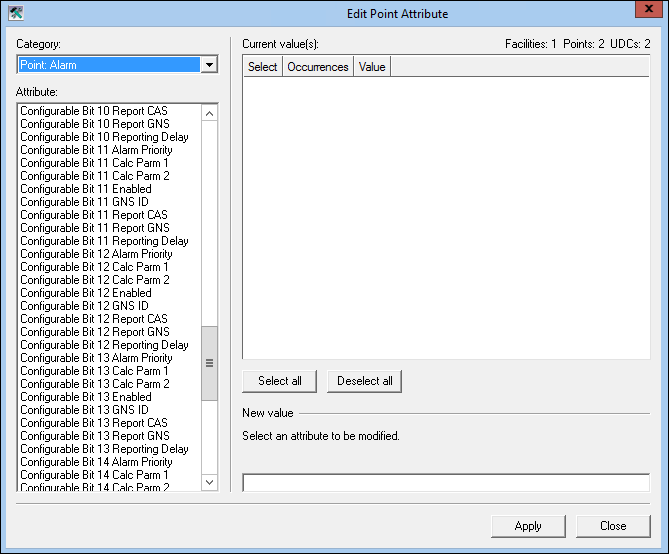
Points can be configured to report an alarm to the CAS or the GNS. When this is the case, you can also optionally configure an alarm reporting delay for the points. If configured, the reporting of the alarm is delayed for the specified period of time. To use Point Configuration Manager to set or edit an alarm delay, consider the delay value and how the settings are applied.
Note: This topic describes alarm delay configuration for more than one point at a time with the Point Configuration Manager. To apply alarm delay settings for a single point, see Alarm Reporting.
To specify alarm delay settings in the Point Configuration Manager, you must specify the service where the alarm is reported and define an integer value for the reporting delay.
Example
Specify a Reporting Delay of 1 to result in a delay of 1 second. Because the Reporting Delay Value Units attribute is always in seconds, if you want to change the delay to be 1 hour in this context, you must reset the Reporting Delay value to 3,600 (seconds).
The delay in alarm reporting is enabled by specifying a value for a Reporting Delay configurable bit. This property is found in the Point:Alarm attribute category, and serves as the time value for the delay. A value of 0 means the delay is not set.
Possible values are integers. The default unit is seconds.
Example
Specify a value of 8 for the configurable bit Reporting Delay. The delay is then enabled, and the time value is 8 seconds. To disable the delay, reset the configurable bit Reporting Delay value to equal to 0.
To Edit a Point Alarm - Reporting Delay
This procedure describes alarm delay configuration for more than one point at a time with the Point Configuration Manager. To apply alarm delay settings for a single point, see Alarm Reporting.
Note: The attribute Report Delay Value Units is not editable. The default unit is seconds.

|
|
|

